> ## Documentation Index
> Fetch the complete documentation index at: https://docs.voicerix.ai/llms.txt
> Use this file to discover all available pages before exploring further.

# Test Agent

> Test your agent with text, voice, or a real phone call before going live.

Before launching your agent, test it directly from the platform to make sure the conversation flows the way you expect. There are three ways to test — text chat, browser voice, or a real phone call.

***

<div style={{ display: "flex", gap: "2rem", alignItems: "center" }}>
  <div style={{ flex: 1 }}>
    ## Test Audio

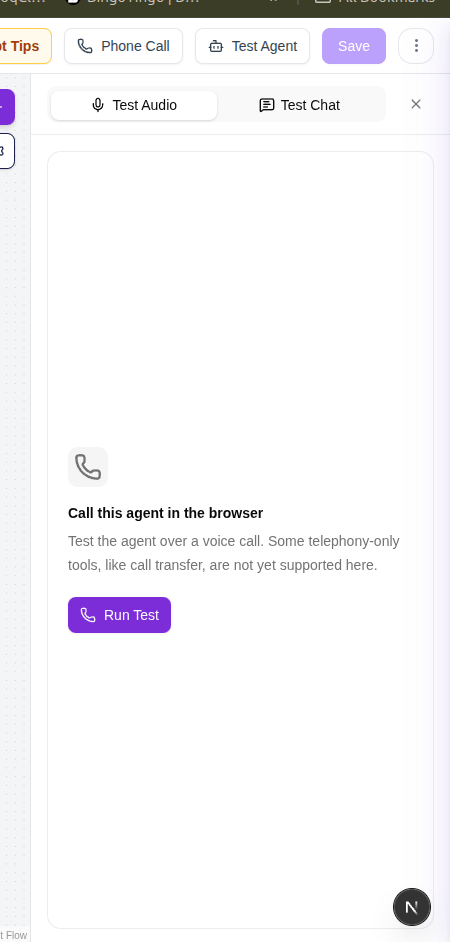
    Talk to your agent directly in the browser using your microphone. No phone number needed.

    Click **Test** on the agent builder, select the **Test Audio** tab, allow microphone access, and start speaking. The agent responds in real time just like it would on a live call. The transcript appears as the conversation progresses so you can see exactly what the agent heard and said.

    Use this to verify voice quality, interruption behaviour, and turn detection before testing on a real device.

    ## Test Chat

    Type messages to your agent and see how it responds — no microphone or phone needed. This is the fastest way to check if your prompts, node flow, and conditions are working correctly.

    Click **Test** on the agent builder, select the **Test Chat** tab, and start typing. The agent replies instantly. Use this for a quick logic check before moving to voice testing.
  </div>

  <div style={{ flex: 1 }}>
    <img src="https://mintcdn.com/metaqualt/GkkreKPoKMUMJ12p/images/v-test-audio.png?fit=max&auto=format&n=GkkreKPoKMUMJ12p&q=85&s=9b564ff92f5e98a8e3de1cf8a41a09e6" alt="Test panel" style={{ width: "100%", objectFit: "contain", borderRadius: "8px" }} width="450" height="942" data-path="images/v-test-audio.png" />
  </div>
</div>

***

## Phone Call Test

<div style={{ display: "flex", gap: "2rem", alignItems: "center" }}>
  <div style={{ flex: 1 }}>
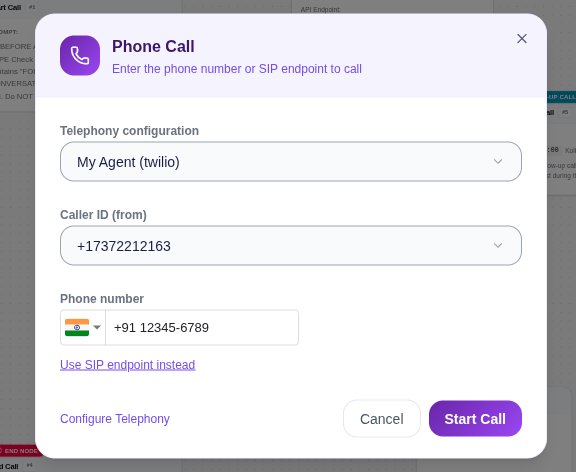
    Send a real call to any phone number to test the agent exactly as a live caller would experience it.

    To use this, you need a telephony configuration set up in [Integrations](/configuration/integrations). Once a telephony provider is connected and a phone number is added, it will automatically appear here. Enter the number you want to call and click **Call** — the agent will dial out immediately.

    <Note>
      Test calls use your connected telephony number and count as real calls. Make sure your telephony configuration is active before testing.
    </Note>
  </div>

  <div style={{ flex: 1 }}>
    <img src="https://mintcdn.com/metaqualt/GkkreKPoKMUMJ12p/images/v-test-phone.png?fit=max&auto=format&n=GkkreKPoKMUMJ12p&q=85&s=8e94f16d184888820528623af9649917" alt="Phone call test" style={{ maxHeight: "300px", width: "100%", objectFit: "contain", borderRadius: "8px" }} width="576" height="472" data-path="images/v-test-phone.png" />
  </div>
</div>