> ## Documentation Index
> Fetch the complete documentation index at: https://docs.voicerix.ai/llms.txt
> Use this file to discover all available pages before exploring further.
# Building Your Agent
> Create a new AI voice agent and set up its conversation flow in minutes.
## Create Your Agent
Go to **Agents** in the sidebar and click **New Agent**.
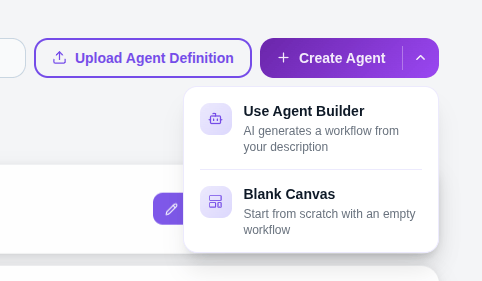 The builder opens on a blank canvas where you can freely stretch, move, and connect nodes to design your flow. You can also let the AI build the agent for you — just describe what you need and it sets up the structure automatically.
***
## Agent Builder
Fill in the three fields below and your agent is ready on the canvas.
The builder opens on a blank canvas where you can freely stretch, move, and connect nodes to design your flow. You can also let the AI build the agent for you — just describe what you need and it sets up the structure automatically.
***
## Agent Builder
Fill in the three fields below and your agent is ready on the canvas.
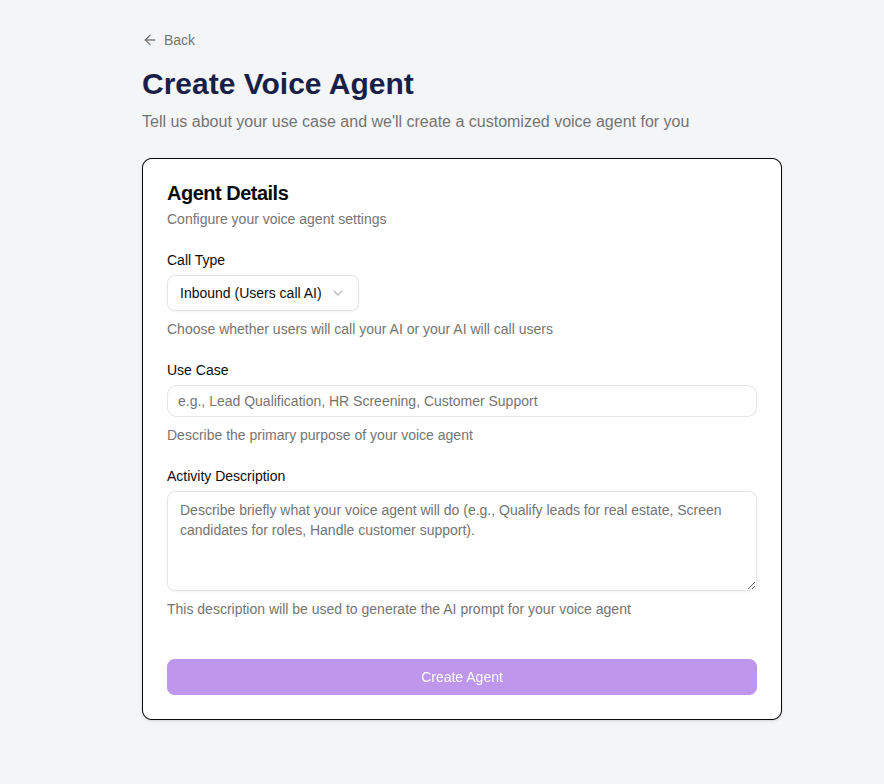 **Type**
Choose how this agent will be used:
* **Outbound** — Agent makes calls to your customers
* **Inbound** — Agent receives and handles incoming calls
**Use Case / Goal**
Describe what this agent should do. Example: `EMI Reminder Bot`, `Clinic Receptionist`, `Lead Qualifier — qualify new property inquiries and book site visits`.
**Prompt**
This is the core of your agent — write clearly how it should talk and what it should do in different situations. The more specific you are, the better the agent performs. Example:
```
Your goal is to remind the customer that their EMI is due tomorrow.
Start by confirming you are speaking with the right person.
Ask if they will be able to make the payment on time.
If they confirm, thank them and close the call.
If they say they need more time, offer a 2 to 3 day extension and confirm their preferred date.
Keep the tone friendly, professional, and brief throughout the conversation.
```
Once you submit, the AI builds the full agent with nodes, pathways, and conversation structure ready on the canvas.
***
## Editing Your Agent
Click on any node on the canvas to open its settings and make changes.
**Type**
Choose how this agent will be used:
* **Outbound** — Agent makes calls to your customers
* **Inbound** — Agent receives and handles incoming calls
**Use Case / Goal**
Describe what this agent should do. Example: `EMI Reminder Bot`, `Clinic Receptionist`, `Lead Qualifier — qualify new property inquiries and book site visits`.
**Prompt**
This is the core of your agent — write clearly how it should talk and what it should do in different situations. The more specific you are, the better the agent performs. Example:
```
Your goal is to remind the customer that their EMI is due tomorrow.
Start by confirming you are speaking with the right person.
Ask if they will be able to make the payment on time.
If they confirm, thank them and close the call.
If they say they need more time, offer a 2 to 3 day extension and confirm their preferred date.
Keep the tone friendly, professional, and brief throughout the conversation.
```
Once you submit, the AI builds the full agent with nodes, pathways, and conversation structure ready on the canvas.
***
## Editing Your Agent
Click on any node on the canvas to open its settings and make changes.
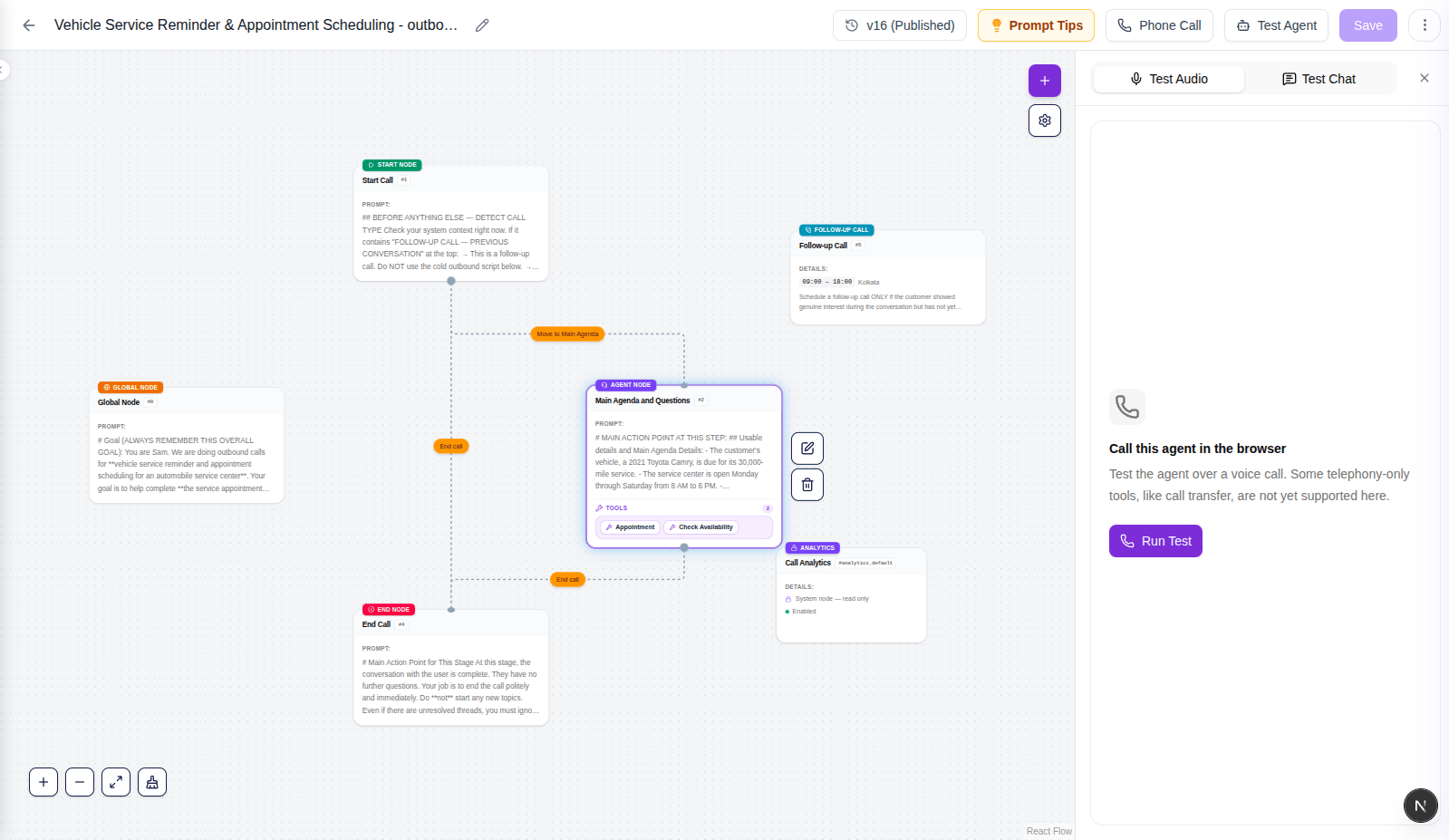 You can **add** new nodes to the canvas, **edit** any node by clicking on it, **connect** nodes by dragging between them, and **delete** nodes or connections you no longer need. You can also **download** your agent configuration as a file to save a backup, or **upload** a previously saved config to restore or reuse an existing setup.
### Tips
* The more detailed and specific your prompt, the more accurately the agent handles real conversations
* Always test with different scenarios — not just when everything goes smoothly
* Use variable extraction inside nodes to capture important information during the call, like names, amounts, or dates
* Break long conversations into multiple focused nodes rather than putting everything in one prompt
You can **add** new nodes to the canvas, **edit** any node by clicking on it, **connect** nodes by dragging between them, and **delete** nodes or connections you no longer need. You can also **download** your agent configuration as a file to save a backup, or **upload** a previously saved config to restore or reuse an existing setup.
### Tips
* The more detailed and specific your prompt, the more accurately the agent handles real conversations
* Always test with different scenarios — not just when everything goes smoothly
* Use variable extraction inside nodes to capture important information during the call, like names, amounts, or dates
* Break long conversations into multiple focused nodes rather than putting everything in one prompt