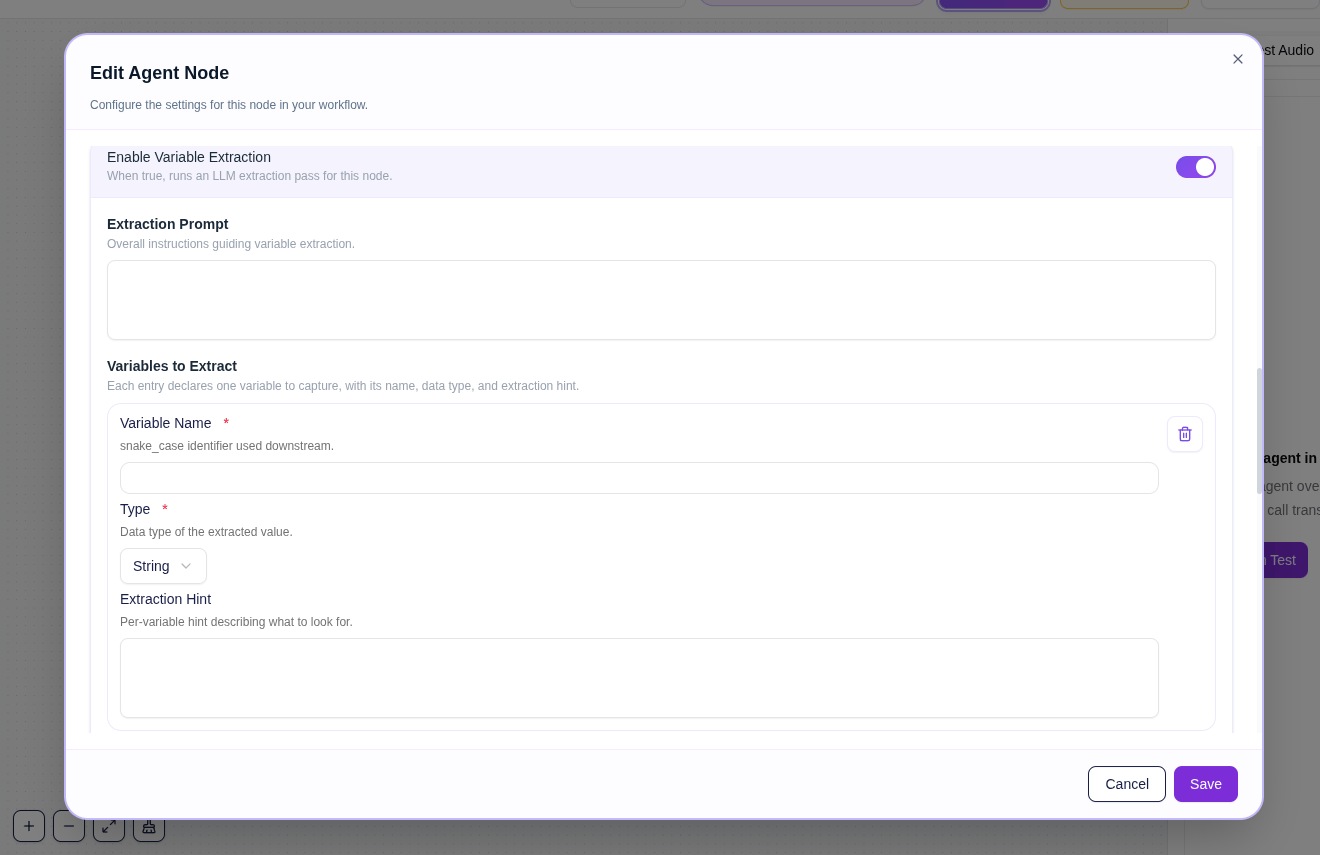
Variables are captured during a call when **Enable Variable Extraction** is turned on in a node. You define what to collect — the caller's name, their decision, a date they mentioned — and the agent listens for it throughout that node's turn.
Each variable has a name, type, and description. The agent uses the description to know what to listen for and extracts the value automatically from the conversation.
Variables extracted in any node are available in the Leads page for every call where they were captured.
See [Start Call](/workspace/nodes/start-call) and [Agent Node](/workspace/nodes/agent-node) for how to set up variable extraction.
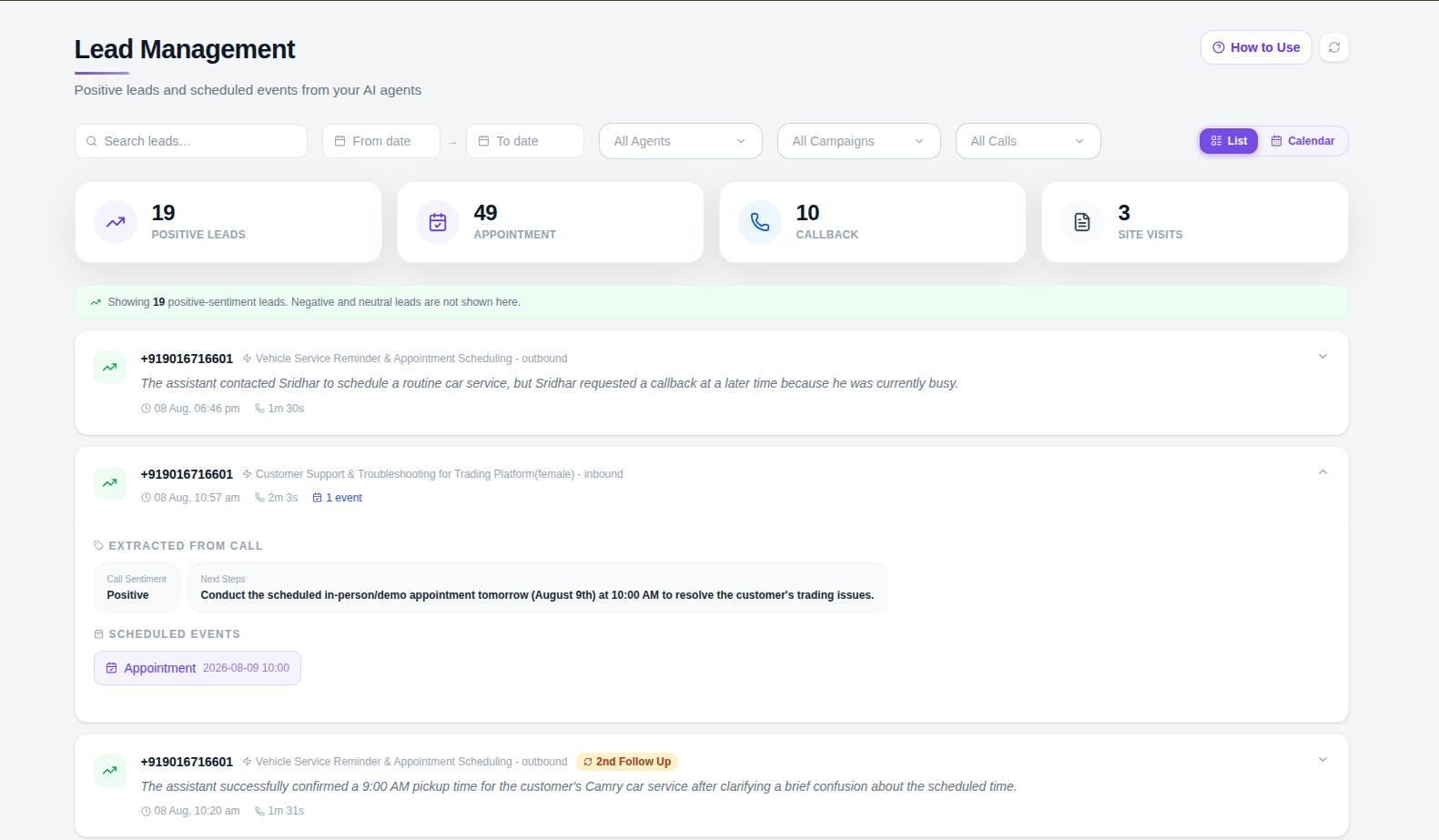 Only calls with a **positive sentiment** appear here. Sentiment is determined by the [QA Analysis](/workspace/nodes/qa-analysis) node which runs automatically after every call. If the customer's overall tone was positive, the call shows up in Leads along with:
* The variables extracted during the conversation
* A summary of the call outcome from the QA node
Neutral and negative sentiment calls do not appear in Leads. Use this page to identify contacts who responded well and are worth following up with.
***
## Events
Only calls with a **positive sentiment** appear here. Sentiment is determined by the [QA Analysis](/workspace/nodes/qa-analysis) node which runs automatically after every call. If the customer's overall tone was positive, the call shows up in Leads along with:
* The variables extracted during the conversation
* A summary of the call outcome from the QA node
Neutral and negative sentiment calls do not appear in Leads. Use this page to identify contacts who responded well and are worth following up with.
***
## Events
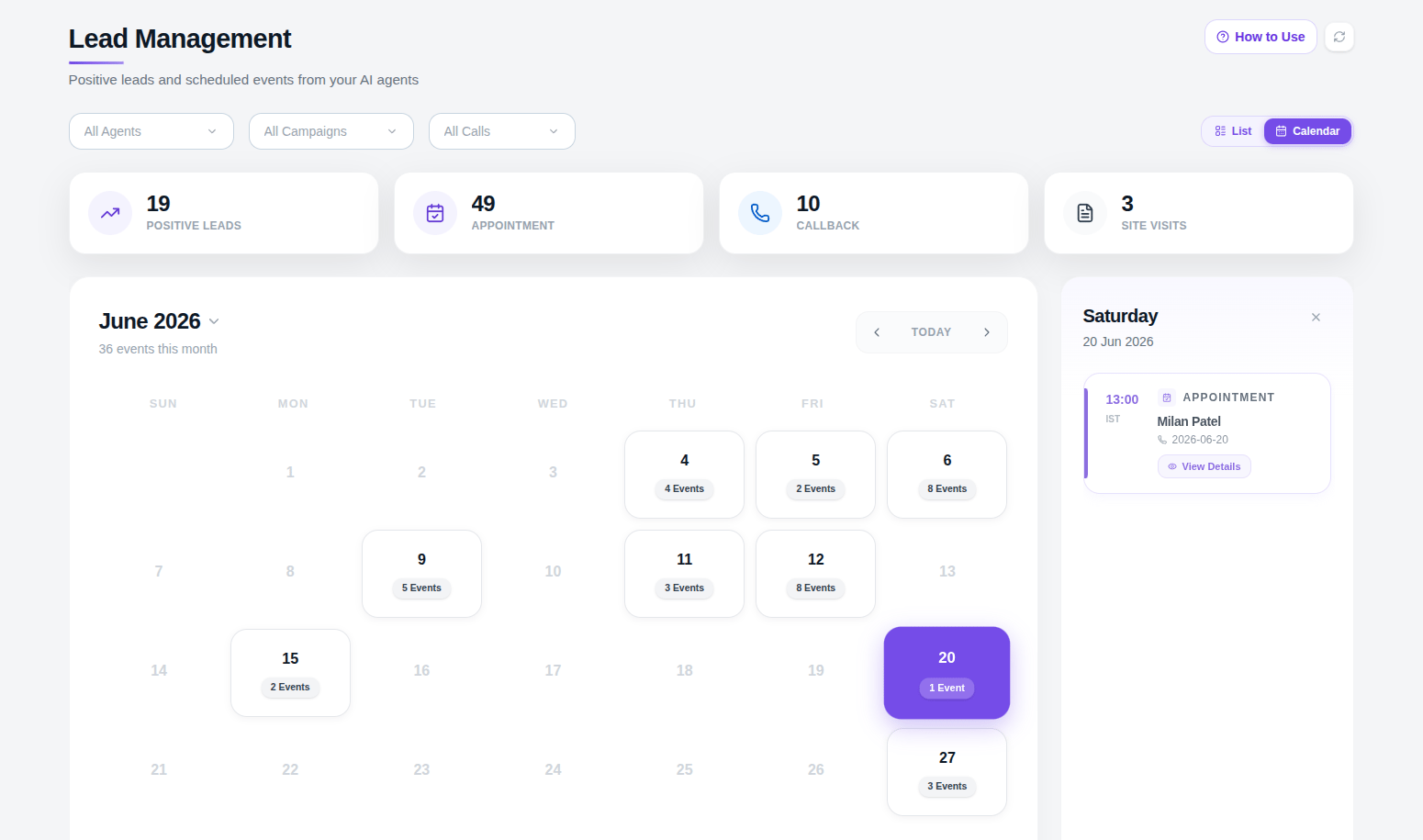 Events are generated when a tool runs during a call. Every time the agent successfully executes a tool — booking an appointment, scheduling a site visit, registering a request — an event is recorded here.
At the top of the page, cards show a count per tool so you can see at a glance how many events each tool has generated. Below, the full event list shows the details of each one — which call it came from, what data was collected, and when it happened.
Click on any event to view its full details. All the fields you defined when creating the tool — the data the agent was instructed to collect from the caller — are shown here with the values captured during that call.
Events are generated when a tool runs during a call. Every time the agent successfully executes a tool — booking an appointment, scheduling a site visit, registering a request — an event is recorded here.
At the top of the page, cards show a count per tool so you can see at a glance how many events each tool has generated. Below, the full event list shows the details of each one — which call it came from, what data was collected, and when it happened.
Click on any event to view its full details. All the fields you defined when creating the tool — the data the agent was instructed to collect from the caller — are shown here with the values captured during that call.